

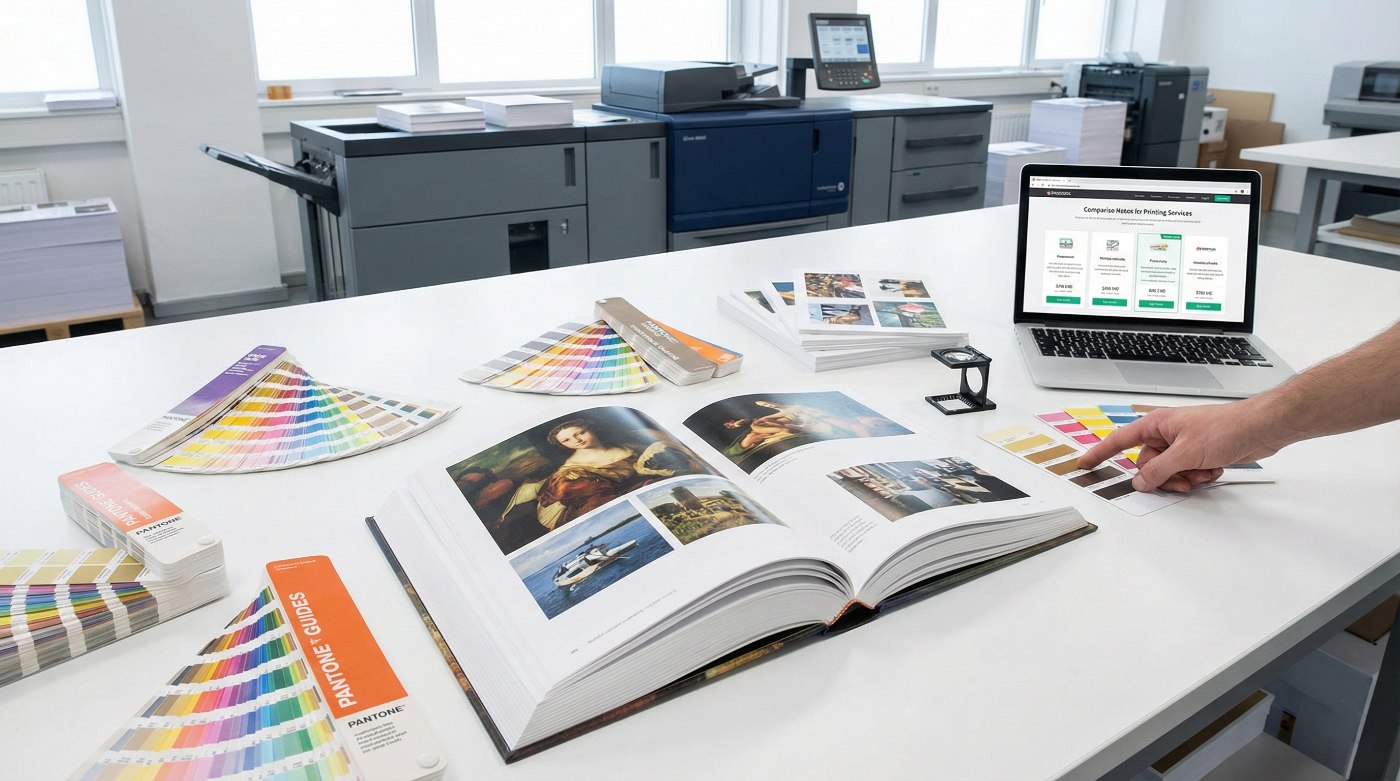
Introduction: The Bridge Between Screen and Paper
The transition from a digital file to a physical art book is where the magic—or the mistakes—happen. A high-resolution monitor creates images using light, while a printing press creates them using microscopic dots of ink. If your files aren’t prepared with the physical press in mind, your masterpiece could suffer from shifted colors, blurry details, or chopped edges.
At ArtBook Printing, we believe the best results are born from a perfect handoff between the artist and the printer. This guide provides a comprehensive, step-by-step technical roadmap to ensure your artwork is 100% press-ready.
1. Resolution: The 300 DPI Gold Standard
Resolution is the foundation of image quality. While web images function at 72 DPI (dots per inch), professional printing requires 300 DPI at the final physical size the image will appear in the book.
- The Trap of Upsampling: You cannot add resolution to a low-quality file. Taking a 72 DPI image and changing it to 300 DPI in Photoshop results in interpolation, which makes the image look muddy or pixelated.
- Vector vs. Raster: Whenever possible, keep text and logos in vector format (Adobe Illustrator or InDesign). Vector graphics have infinite resolution and will remain razor-sharp regardless of the size.
- The Pro Tip: If you are scanning physical paintings, scan them at 600 DPI. This gives you the creative breathing room to enlarge the art on the page without losing detail.
2. Mastering the CMYK Color Space
Your screen works in RGB (Red, Green, Blue). A printing press works in CMYK (Cyan, Magenta, Yellow, Black).
- Color Conversion: Always convert your files to CMYK before finalizing your design. This allows you to see how bright colors (like neon greens or electric blues) will naturally tone down when translated into ink.
- ICC Profiles: For the highest accuracy, use a standard profile like GRACoL2006 or FOGRA39. These are the profiles ArtBook Printing uses to ensure color fidelity.
- Soft Proofing: Use the Proof Colors feature in Photoshop or Affinity to simulate how your art will look on specific paper stocks (like matte vs. glossy).
3. Understanding Bleed, Trim, and Safety
In the printing world, books are printed on large sheets and then trimmed by a mechanical blade. Because machines can shift by a fraction of a millimeter, we use margins to protect your art.
- Bleed (3mm or 0.125”): Any image that is intended to go to the very edge of the page must actually extend past the edge. If you don’t include bleed, you risk having a thin, white line at the edge of your page after trimming.
- Trim Line: This is where the blade will cut.
- Safety Margin (10mm or 0.4”): Keep all critical elements—like page numbers, fine details, or text—well inside this margin. You never want a beautiful line of poetry to be too close to the edge.
4. Designing for the Gutter (The Center Fold)
The gutter is the area where the pages meet the spine.
- Double-Page Spreads: If an image spans across two pages, you must account for the lost space in the fold.
- Smyth Sewn Advantage: Because our Smyth-sewn books lay flatter, you lose less of the image in the gutter. However, we still recommend keeping faces or focal points at least 15mm away from the center line to ensure they aren’t distorted by the curve of the page.
5. Achieving Rich Black
Standard black ink (100% K) can look thin or slightly grey when used for large background areas. To achieve a deep, museum-quality black, you must use a Rich Black formula.
- Recommended Formula: C=60, M=40, Y=40, K=100.
- Why? The layers of Cyan, Magenta, and Yellow sit beneath the Black ink, adding heft and preventing the paper from soaking up too much of a single color.
- Text Warning: Never use Rich Black for small text (below 12pt). It can cause registration ghosting where the colors don’t align perfectly on tiny strokes. Use 100% K for all fine text.
6. Transparency and Layer Effects
Modern design often involves Drop Shadows, Glows, or Transparency. If handled incorrectly, these can create white boxes or flattened artifacts in the final print.
- Flattening: Always flatten transparency or use high-quality export settings that handle transparency natively.
- Overprint Settings: Be careful with Overprint Black settings in InDesign. If accidentally turned on for colored objects, they will blend with the background in unexpected ways.
7. Exporting the Final Print-Ready PDF
The export stage is the moment of truth. Use these settings for a flawless handoff:
- File Format: Use PDF/X-4:2010. This is the industry-standard container that preserves layers, transparency, and high-resolution data.
- Marks and Bleeds: In the export dialog, ensure Use Document Bleed Settings is checked. You do not need to include Crop Marks or Registration Marks unless specifically requested, as our automated prepress software handles alignment.
- Font Embedding: Ensure all fonts are set to Subset 100%. This ensures that even if we don’t have your specific boutique font, it will print exactly as intended.
8. Final Pre-Flight Checklist
Before you upload to ArtBook Printing, do one final human check:
[ ] Is the page count a multiple of 4? (Essential for most binding types).
[ ] Have you run a spell-check? (The printer cannot catch typos!).
[ ] Are your blacks consistent throughout the book?
[ ] Is the spine width calculated correctly based on your paper choice? (Contact us for a spine-width calculator!).
Conclusion
Preparing artwork for a professional art book is a technical discipline, but it is one that rewards the meticulous artist. By following these steps, you remove the guesswork and ensure that the final product is a perfect reflection of your creative intent.At ArtBook Printing, our prepress team is always standing by to review your files. We don’t just hit print—we partner with you to ensure your legacy is preserved in ink and paper exactly as you envisioned it.